Terraria Guides4 min•September 15, 2026
Step-by-Step Guide: Setting Up a Free Dedicated Terraria Server with TShock
Learn how to launch and configure a high-performance dedicated Terraria server with TShock, tModLoader, and automated anti-griefing protection.
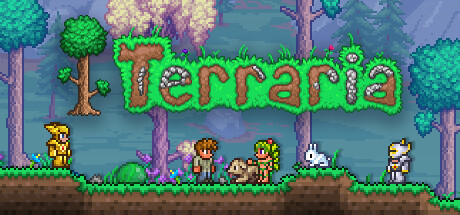
#How to Launch a Dedicated Terraria Server
Terraria is one of the most engaging co-op adventure games in existence. Running a dedicated 24/7 server allows your group of friends to explore, mine, and battle bosses without relying on someone hosting locally from their desktop.
On CoalByte Cloud, you can deploy a free dedicated server with low-latency networking and enterprise DDoS filtering.
Choosing Your Server Flavor: Vanilla vs. TShock vs. tModLoader
- Vanilla Dedicated Server: Great for small groups of trusted friends who want the pure original game.
- TShock: The gold standard for public or community servers. Provides a permission hierarchy, user authentication, chest protection, and anti-cheat modules.
- tModLoader: Essential if you want to experience large-scale modpacks such as Calamity, Thorium, or Fargo's Mutant Mod.
Basic Configuration in config.json
Access your server via the CoalByte File Manager and open tshock/config.json:
json
{
  "ServerPassword": "your_secure_password",
  "MaxSlots": 8,
  "Port": 7777,
  "EnableWhitelist": false,
  "AutoSave": true,
  "AutoSaveInterval": 10
}
Tips for Smooth Server Operation
- Frequent Autosaves: Keep the autosave interval between 10-15 minutes so you never lose progression during intensive boss encounters.
- Spawn Protection: With TShock, use
/protectspawnto safeguard the initial landing area from accidental destruction. - Automated Backups: Enable scheduled backups in the CoalByte Backups tab to easily restore world states at any moment.
Etiquetas:#Terraria#TShock#tModLoader#Multiplayer#Gaming#Dedicated Server